
Designers often need to resize vector paths in absolute units rather than percentages. Adobe Illustrator’s default scaling tools work in percentages, which can be limiting when you want to add or subtract a specific number of pixels, millimeters, or points. This custom script solves that problem by introducing a pixel‑based resizing workflow.
What the Script Does
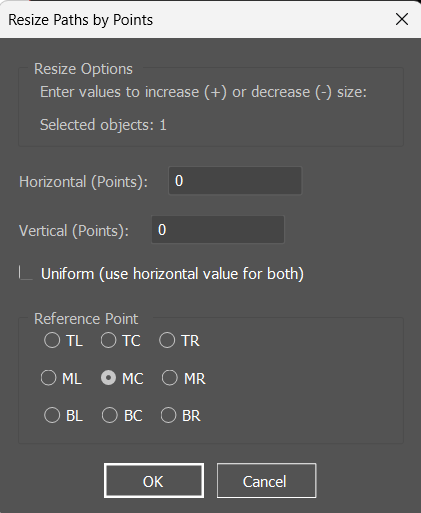
The script adds a dialog box that lets you resize selected paths or objects by entering numeric values instead of percentages. Key features include:
- Unit awareness: Automatically adapts to the document’s ruler units (Pixels, Points, Inches, mm, cm, Picas).
- Direct input: Enter positive values to enlarge or negative values to shrink.
- Uniform scaling option: Apply the same horizontal value to both axes.
- Reference point control: Choose from nine anchor points (Top‑Left, Center, Bottom‑Right, etc.) to define how the object resizes.
- Batch processing: Works on multiple selected objects at once.
Why It’s Useful
For motion designers and illustrators, this script provides precision and speed:
- Pixel‑perfect control: Resize by exact pixel values, ideal for UI design, iconography, and motion graphics assets.
- Consistent layouts: Maintain uniform spacing and proportions across multiple objects.
- Flexible units: Whether you’re working in inches for print or pixels for digital, the script adapts.
- Anchor‑based resizing: Control how objects expand or contract relative to a chosen reference point.
How to Use It
- Open a document in Adobe Illustrator.
- Select one or more paths or objects.
- Run the script from the File → Scripts → Other Script… menu.
- In the dialog box:
- Enter horizontal and vertical resize values.
- Check Uniform if you want both axes to use the same value.
- Choose a reference point (e.g., Center, Top‑Left).
- Click OK to apply changes.
The script will resize all selected objects by the specified pixel (or unit) values, maintaining clean and predictable results.
Practical Applications
- Motion graphics assets: Resize vector elements for animation pipelines without losing precision.
- UI/UX design: Adjust icons or buttons by exact pixel increments.
- Print layouts: Scale objects by millimeters or inches for accurate print dimensions.
- Batch adjustments: Quickly resize multiple paths in one step.
JavaScript
// Resize Paths by Pixels - Adobe Illustrator Script
// Resize selected paths by adding/subtracting pixel values instead of percentages

(function() {
    // Check if there's an active document
    if (app.documents.length === 0) {
        alert("Please open a document first.");
        return;
    }

    var doc = app.activeDocument;
    var sel = doc.selection;

    // Check if there are selected objects
    if (sel.length === 0) {
        alert("Please select at least one path or object.");
        return;
    }

    // Get document ruler units
    var units = doc.rulerUnits;
    var unitName = getUnitName(units);

    // Create dialog
    var dialog = new Window("dialog", "Resize Paths by " + unitName);
    dialog.alignChildren = "fill";

    // Info panel
    var infoGroup = dialog.add("panel", undefined, "Resize Options");
    infoGroup.alignChildren = "left";
    infoGroup.add("statictext", undefined, "Enter values to increase (+) or decrease (-) size:");
    infoGroup.add("statictext", undefined, "Selected objects: " + sel.length);

    // Input group for horizontal
    var hGroup = dialog.add("group");
    hGroup.add("statictext", undefined, "Horizontal (" + unitName + "):");
    var hInput = hGroup.add("edittext", undefined, "0");
    hInput.characters = 10;

    // Input group for vertical
    var vGroup = dialog.add("group");
    vGroup.add("statictext", undefined, "Vertical (" + unitName + "):");
    var vInput = vGroup.add("edittext", undefined, "0");
    vInput.characters = 10;

    // Checkbox for uniform scaling
    var uniformCheck = dialog.add("checkbox", undefined, "Uniform (use horizontal value for both)");
    uniformCheck.value = false;

    // Reference point group
    var refGroup = dialog.add("panel", undefined, "Reference Point");
    refGroup.orientation = "row";
    refGroup.alignChildren = "center";

    var refPoints = refGroup.add("group");
    refPoints.orientation = "column";
    refPoints.alignChildren = "center";

    var refRow1 = refPoints.add("group");
    var refRow2 = refPoints.add("group");
    var refRow3 = refPoints.add("group");

    var refButtons = [];
    refButtons.push(refRow1.add("radiobutton", undefined, "TL"));
    refButtons.push(refRow1.add("radiobutton", undefined, "TC"));
    refButtons.push(refRow1.add("radiobutton", undefined, "TR"));
    refButtons.push(refRow2.add("radiobutton", undefined, "ML"));
    refButtons.push(refRow2.add("radiobutton", undefined, "MC"));
    refButtons.push(refRow2.add("radiobutton", undefined, "MR"));
    refButtons.push(refRow3.add("radiobutton", undefined, "BL"));
    refButtons.push(refRow3.add("radiobutton", undefined, "BC"));
    refButtons.push(refRow3.add("radiobutton", undefined, "BR"));

    refButtons[4].value = true; // Default to center

    // Button group
    var buttonGroup = dialog.add("group");
    buttonGroup.alignment = "center";
    var okButton = buttonGroup.add("button", undefined, "OK", {name: "ok"});
    var cancelButton = buttonGroup.add("button", undefined, "Cancel", {name: "cancel"});

    // Show dialog
    if (dialog.show() == 1) {
        var hValue = parseFloat(hInput.text) || 0;
        var vValue = uniformCheck.value ? hValue : (parseFloat(vInput.text) || 0);

        // Get selected reference point
        var refPoint = getSelectedRefPoint(refButtons);

        // Convert values to points (Illustrator's internal unit)
        var hPoints = convertToPoints(hValue, units);
        var vPoints = convertToPoints(vValue, units);

        // Process each selected object
        app.coordinateSystem = CoordinateSystem.ARTBOARDCOORDINATESYSTEM;

        for (var i = 0; i < sel.length; i++) {
            resizeObject(sel[i], hPoints, vPoints, refPoint);
        }

        alert("Resized " + sel.length + " object(s) successfully!");
    }

    // Function to get unit name
    function getUnitName(units) {
        switch(units) {
            case RulerUnits.Pixels: return "Pixels";
            case RulerUnits.Points: return "Points";
            case RulerUnits.Inches: return "Inches";
            case RulerUnits.Millimeters: return "mm";
            case RulerUnits.Centimeters: return "cm";
            case RulerUnits.Picas: return "Picas";
            default: return "Pixels";
        }
    }

    // Function to convert to points
    function convertToPoints(value, units) {
        switch(units) {
            case RulerUnits.Pixels: return value * 0.75; // 1 pixel = 0.75 points
            case RulerUnits.Points: return value;
            case RulerUnits.Inches: return value * 72;
            case RulerUnits.Millimeters: return value * 2.83464567;
            case RulerUnits.Centimeters: return value * 28.3464567;
            case RulerUnits.Picas: return value * 12;
            default: return value * 0.75; // Default to pixels
        }
    }

    // Function to get selected reference point
    function getSelectedRefPoint(buttons) {
        var points = [
            [0, 0],     // TL
            [0.5, 0],   // TC
            [1, 0],     // TR
            [0, 0.5],   // ML
            [0.5, 0.5], // MC (center)
            [1, 0.5],   // MR
            [0, 1],     // BL
            [0.5, 1],   // BC
            [1, 1]      // BR
        ];

        for (var i = 0; i < buttons.length; i++) {
            if (buttons[i].value) {
                return points[i];
            }
        }
        return points[4]; // Default to center
    }

    // Function to resize object
    function resizeObject(obj, hPoints, vPoints, refPoint) {
        try {
            var bounds = obj.geometricBounds; // [left, top, right, bottom]
            var currentWidth = bounds[2] - bounds[0];
            var currentHeight = bounds[1] - bounds[3];

            // Calculate new dimensions
            var newWidth = currentWidth + hPoints;
            var newHeight = currentHeight + vPoints;

            // Prevent negative or zero dimensions
            if (newWidth <= 0 || newHeight <= 0) {
                return;
            }

            // Calculate scale factors
            var scaleH = (newWidth / currentWidth) * 100;
            var scaleV = (newHeight / currentHeight) * 100;

            // Calculate reference point position
            var refX = bounds[0] + (currentWidth * refPoint[0]);
            var refY = bounds[1] - (currentHeight * refPoint[1]);

            // Resize the object
            obj.resize(scaleH, scaleV, true, true, true, true, scaleH,
                      Transformation.DOCUMENTCOORDINATESYSTEM, refX, refY);

        } catch(e) {
            // Skip objects that can't be resized
        }
    }

})();