
Create Futuristic UI, Sci-Fi Interfaces, Gauges & Circular Data Visualizations in Seconds
Designing high-quality circular HUD elements in Adobe Illustrator can be time-consuming when done manually. Aligning tick marks, distributing values along arcs, rotating labels correctly, and managing subdivisions often requires repetitive calculations and precise positioning.
The Advanced HUD Circular Generator v2.0 script eliminates that friction by automating the entire process — complete with live preview, arc control, tick customization, sub-divisions, and dynamic text rotation.
If you’re working on UI design, sci-fi interfaces, speedometers, dashboards, infographics, or futuristic HUD graphics, this script is built specifically for you.
What Is the Advanced HUD Circular Generator?
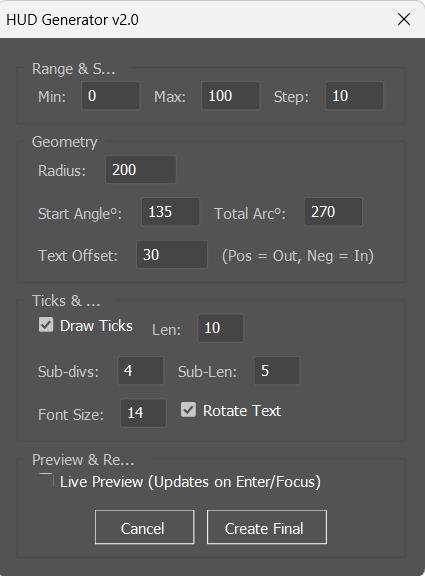
This Illustrator script generates fully customizable circular or arc-based HUD elements. It allows you to define:
- Data range (Min / Max / Step)
- Radius
- Start angle
- Total arc span
- Tick marks and subdivisions
- Text offset and rotation
- Font size
- Live preview mode
Instead of manually calculating angles and distributing objects, the script handles all trigonometry and positioning automatically.
Core Features Explained
1. Range & Step Control (Smart Distribution Logic)
You can define:
- Minimum value
- Maximum value
- Step size
Example:
- Min: 0
- Max: 100
- Step: 10
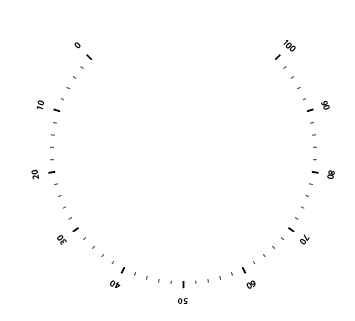
The script intelligently calculates inclusive distribution (0, 10, 20… 100 = 11 items). This is critical for accurate gauge and measurement designs.
It also prevents performance issues by limiting excessive item generation in preview mode.
2. Arc & Geometry Precision
Radius Control
Set the exact radius for your HUD circle.
Start Angle
Define where the gauge begins (e.g., 135° for automotive-style dashboards).
Total Arc
Choose:
- 360° for full circular UI elements
- Partial arcs (e.g., 270°) for speedometers and meters
The script automatically adjusts angle increments depending on whether you’re generating:
- A full circle
- A partial arc
This ensures correct alignment and avoids overlapping endpoints.
3. Major Ticks & Sub-Ticks
Major Tick Marks
- Toggle on/off
- Adjustable length
- Thicker stroke for hierarchy
Subdivisions Between Steps
You can define:
- Number of sub-divisions
- Sub-tick length
Example:
If step = 10 and subdivisions = 4
You get 4 smaller ticks between each major value.
This is ideal for:
- Technical dials
- Precision measurement graphics
- Sci-fi radar systems
- Aviation-style UI
4. Text Offset & Rotation Control
Text positioning in circular layouts is notoriously tricky. This script handles it automatically.
Text Offset
- Positive value → text outside the radius
- Negative value → text inside the radius
Rotate Text Option
When enabled:
- Text aligns tangentially for authentic HUD appearance
- Each label rotates around its center
- Maintains professional readability
Perfect for:
- Automotive dashboards
- Aerospace UI
- Futuristic holographic interfaces
5. Live Preview Mode
One of the most powerful features.
When enabled:
- Updates automatically on input change
- Temporary preview group is generated
- Cleans itself before final rendering
This dramatically speeds up experimentation with:
- Different arc angles
- Various step values
- Radius adjustments
- Subdivision density
No more trial-and-error redraw cycles.
6. Performance & Stability Safeguards
The script includes:
- Infinite loop prevention (step validation)
- Item count limitation during preview
- Safe parsing of all input values
- Automatic cleanup of temporary preview objects
This ensures Illustrator remains stable even when generating complex HUD structures.
Practical Use Cases
UI / UX Design
Create circular sliders, radial menus, and progress meters.
Sci-Fi Interface Design
Build holographic control panels inspired by films and games.
Automotive Dashboards
Design speedometers, RPM gauges, fuel meters.
Motion Graphics Prep
Generate Illustrator vectors for import into:
- Adobe After Effects
- Cinema 4D
Data Visualization
Construct circular infographics with precision scaling.
Why This Script Is Better Than Manual Methods
Manually creating circular tick systems requires:
- Polar coordinate calculations
- Smart guides alignment
- Repeated rotate-and-duplicate steps
- Manual text orientation fixes
This script:
- Automates trigonometry
- Handles inclusive range logic
- Supports both arcs and full circles
- Organizes everything inside grouped structures
- Provides instant iteration via preview mode
It transforms a 20-minute repetitive task into a 10-second automated process.
Technical Breakdown (Under the Hood)
The script:
- Uses
Math.cos()andMath.sin()for radial positioning - Converts degrees to radians
- Calculates inclusive step counts
- Adjusts angle increments for:
- Full circle wrapping logic
- Partial arc distribution
- Groups all generated elements for clean layer management
- Automatically centers on the current view
It intelligently differentiates between:
- Full 360° layouts (wrap-safe distribution)
- Partial arc gauges (exact endpoint alignment)
Ideal For Designers Who:
- Create futuristic UI regularly
- Work on game interfaces
- Design technical dashboards
- Produce sci-fi motion graphics
- Want procedural precision in Illustrator
- Need scalable vector HUD systems
Workflow Tips
Tip 1: Use Layers
Generate each HUD system on separate layers for easy animation.
Tip 2: Expand Appearance Before Animation
If exporting to motion software, clean up stroke styles first.
Tip 3: Combine with Gradient Strokes
For futuristic glow effects, apply gradient strokes and outer glows.
Tip 4: Duplicate & Offset
Create multi-ring HUD systems by duplicating and adjusting radius values.
Final Thoughts
The Advanced HUD Circular Generator v2.0 is more than a tick-mark script — it’s a procedural HUD construction engine inside Adobe Illustrator.
With full arc control, subdivision logic, text rotation, and live preview, it enables designers to build high-precision circular UI systems rapidly and consistently.
If you design:
- Sci-fi dashboards
- Technical meters
- Futuristic interfaces
- Circular infographics
This script will significantly streamline your workflow.
/*
  Advanced HUD Circular Generator v2.0
  ------------------------------------
  Features: Live Preview, Tick Marks, Sub-ticks, Text Offset, Arc control.
  Ideal for: UI Design, Sci-Fi Interfaces, Speedometers, Gauges.
*/

(function() {
    var SCRIPT_NAME = "HUD_Generator";
    var PREVIEW_NAME = "HUD_TEMP_PREVIEW";

    // Ensure document exists
    if (app.documents.length === 0) {
        alert("Please create a document first.");
        return;
    }
    var doc = app.activeDocument;

    // --- UI LAYOUT ---
    var win = new Window("dialog", "HUD Generator v2.0");
    win.orientation = "row";
    win.alignChildren = ["fill", "fill"];

    // --- LEFT COLUMN (CONTROLS) ---
    var colControls = win.add("group");
    colControls.orientation = "column";
    colControls.alignChildren = ["fill", "top"];
    colControls.spacing = 5;

    // 1. DATA PANEL
    var pnlData = colControls.add("panel", undefined, "Range & Steps");
    pnlData.alignChildren = ["fill", "top"];

    var grpRange = pnlData.add("group");
    grpRange.add("statictext", undefined, "Min:");
    var inpMin = grpRange.add("edittext", undefined, "0");
    inpMin.characters = 4;
    grpRange.add("statictext", undefined, "Max:");
    var inpMax = grpRange.add("edittext", undefined, "100");
    inpMax.characters = 4;
    grpRange.add("statictext", undefined, "Step:");
    var inpStep = grpRange.add("edittext", undefined, "10");
    inpStep.characters = 4;

    // 2. GEOMETRY PANEL
    var pnlGeo = colControls.add("panel", undefined, "Geometry");
    pnlGeo.alignChildren = ["left", "top"];

    var grpRad = pnlGeo.add("group");
    grpRad.add("statictext", undefined, "Radius:");
    var inpRadius = grpRad.add("edittext", undefined, "200");
    inpRadius.characters = 5;

    var grpAngle = pnlGeo.add("group");
    grpAngle.add("statictext", undefined, "Start Angle°:");
    var inpStart = grpAngle.add("edittext", undefined, "135"); // Typical car gauge start
    inpStart.characters = 4;
    grpAngle.add("statictext", undefined, "Total Arc°:");
    var inpArc = grpAngle.add("edittext", undefined, "270");
    inpArc.characters = 4;

    var grpOffset = pnlGeo.add("group");
    grpOffset.add("statictext", undefined, "Text Offset:");
    var inpTextOffset = grpOffset.add("edittext", undefined, "30"); // Distance from radius
    inpTextOffset.characters = 5;
    grpOffset.add("statictext", undefined, "(Pos = Out, Neg = In)");

    // 3. TICKS & STYLE PANEL
    var pnlStyle = colControls.add("panel", undefined, "Ticks & Text");
    pnlStyle.alignChildren = ["left", "top"];

    // Ticks
    var grpTicks = pnlStyle.add("group");
    var chkTicks = grpTicks.add("checkbox", undefined, "Draw Ticks");
    chkTicks.value = true;
    grpTicks.add("statictext", undefined, "Len:");
    var inpTickLen = grpTicks.add("edittext", undefined, "10");
    inpTickLen.characters = 3;

    // Subdivisions
    var grpSub = pnlStyle.add("group");
    grpSub.add("statictext", undefined, "Sub-divs:");
    var inpSubDivs = grpSub.add("edittext", undefined, "4"); // 4 marks between 0 and 10 means 5 gaps
    inpSubDivs.characters = 3;
    grpSub.add("statictext", undefined, "Sub-Len:");
    var inpSubLen = grpSub.add("edittext", undefined, "5");
    inpSubLen.characters = 3;

    // Text options
    var grpFont = pnlStyle.add("group");
    grpFont.add("statictext", undefined, "Font Size:");
    var inpFontSize = grpFont.add("edittext", undefined, "14");
    inpFontSize.characters = 3;
    var chkRotate = grpFont.add("checkbox", undefined, "Rotate Text");
    chkRotate.value = true;

    // 4. ACTION PANEL
    var pnlAction = colControls.add("panel", undefined, "Preview & Render");
    pnlAction.alignChildren = ["fill", "center"];

    var chkPreview = pnlAction.add("checkbox", undefined, "Live Preview (Updates on Enter/Focus)");
    chkPreview.value = false;

    var grpBtns = pnlAction.add("group");
    grpBtns.alignment = "center";
    var btnCancel = grpBtns.add("button", undefined, "Cancel");
    var btnOk = grpBtns.add("button", undefined, "Create Final");

    // --- EVENT HANDLERS ---

    // gather all inputs to easily attach listeners
    var allInputs = [inpMin, inpMax, inpStep, inpRadius, inpStart, inpArc, inpTextOffset, inpTickLen, inpSubDivs, inpSubLen, inpFontSize];
    var allChecks = [chkTicks, chkRotate];

    // Function to trigger preview
    var triggerPreview = function() {
        if (chkPreview.value) {
            runGenerator(true); // true = isPreview mode
            app.redraw();
        }
    };

    // Attach listeners
    for (var i=0; i<allInputs.length; i++) {
        allInputs[i].onChange = triggerPreview;
    }
    for (var j=0; j<allChecks.length; j++) {
        allChecks[j].onClick = triggerPreview;
    }

    chkPreview.onClick = function() {
        if (this.value) triggerPreview();
        else deletePreview();
    }

    btnOk.onClick = function() {
        deletePreview(); // Clear temp
        runGenerator(false); // Generate real
        win.close();
    }

    btnCancel.onClick = function() {
        deletePreview();
        win.close();
    }

    // --- CORE LOGIC ---

    function deletePreview() {
        try {
            // Find existing preview group by name and remove it
            for (var i = doc.pageItems.length - 1; i >= 0; i--) {
                if (doc.pageItems[i].name === PREVIEW_NAME) {
                    doc.pageItems[i].remove();
                }
            }
        } catch(e) {}
    }

    function runGenerator(isPreview) {
        // 1. Parse Inputs safely
        var min = parseFloat(inpMin.text) || 0;
        var max = parseFloat(inpMax.text) || 100;
        var step = parseFloat(inpStep.text) || 10;
        var r = parseFloat(inpRadius.text) || 100;
        var startAngle = parseFloat(inpStart.text) || 90;
        var totalArc = parseFloat(inpArc.text) || 360;
        var txtOffset = parseFloat(inpTextOffset.text) || 20;
        var tickLen = parseFloat(inpTickLen.text) || 10;
        var subDivs = parseInt(inpSubDivs.text) || 0;
        var subLen = parseFloat(inpSubLen.text) || 5;
        var fSize = parseFloat(inpFontSize.text) || 12;
        var doTicks = chkTicks.value;
        var doRotate = chkRotate.value;

        // Safety check to prevent crashing Illustrator with infinite loops
        if (step <= 0) return;
        var stepCount = Math.floor(Math.abs((max - min) / step));
        if (stepCount > 500 && isPreview) {
            // Cap preview performance
             if(!confirm("Large number of items ("+stepCount+"). Continue?")) {
                 chkPreview.value = false;
                 return;
             }
        }

        // 2. Setup Group
        if (isPreview) deletePreview();
        var masterGroup = doc.groupItems.add();
        masterGroup.name = isPreview ? PREVIEW_NAME : "HUD_Element";

        // View Center
        var cx = doc.activeView.centerPoint[0];
        var cy = doc.activeView.centerPoint[1];

        // 3. Logic setup
        // If full circle, divide by count. If arc, divide by count (so it ends exactly on the last point)
        // Note: For arcs (gauges), we usually want the last number to be at the end of the arc.
        // So we treat 0 to Count as indices.

        var totalSteps = stepCount;
        // If it's a perfect 360, the last point overlaps the first.
        // Logic: if 360, step is arc / (count+1)? No, usually standard division.

        var isFullCircle = (Math.abs(totalArc) >= 360);
        var angleIncrement = (isFullCircle) ? (totalArc / (totalSteps + 1)) : (totalArc / totalSteps);

        // Fix for standard 0-max inclusive logic on arcs
        if (!isFullCircle) angleIncrement = totalArc / totalSteps;
        else angleIncrement = 360 / (totalSteps + 1); // Adjust for 0-100 wrapping

        // Correct logic for inclusive steps (0, 10, 20... 100)
        // If Min=0, Max=100, Step=10 -> 11 items.
        var numItems = stepCount + 1;
        if (isFullCircle) {
             // If 360, usually Min and Max are the same point, so we drop one?
             // Let's stick to linear distribution for HUDs.
             angleIncrement = 360 / numItems;
        } else {
             angleIncrement = totalArc / stepCount;
        }


        // 4. Main Loop
        for (var i = 0; i < numItems; i++) {

            // Current Math
            var val = min + (i * step);
            // Angle in degrees
            var deg = startAngle + (i * angleIncrement);
            // Angle in Radians (Illustrator math: 0 is East, CCW. We want inputs to feel like a clock)
            // But standard Math.cos/sin works on standard unit circle.
            // To make "90" feel like top, we don't change logic, user just inputs 90.
            // However, to make it HUD standard (0 is usually West or South-West), we just respect input.
            var rad = deg * (Math.PI / 180);

            // --- DRAW MAJOR TICKS ---
            if (doTicks) {
                var p1x = cx + r * Math.cos(rad);
                var p1y = cy + r * Math.sin(rad);
                var p2x = cx + (r + tickLen) * Math.cos(rad);
                var p2y = cy + (r + tickLen) * Math.sin(rad);

                var tickLine = masterGroup.pathItems.add();
                tickLine.setEntirePath([[p1x, p1y], [p2x, p2y]]);
                tickLine.stroked = true;
                tickLine.filled = false;
                tickLine.strokeWidth = 2; // Major ticks thicker
            }

            // --- DRAW TEXT ---
            var txtR = r + txtOffset; // Radius for text
            var tx = cx + txtR * Math.cos(rad);
            var ty = cy + txtR * Math.sin(rad);

            var tFrame = masterGroup.textFrames.add();
            tFrame.contents = val.toString();
            tFrame.textRange.characterAttributes.size = fSize;
            tFrame.textRange.paragraphAttributes.justification = Justification.CENTER;

            // Positioning Text (Centering on coordinate)
            tFrame.top = ty + (tFrame.height / 2); // vertical correction
            tFrame.left = tx - (tFrame.width / 2); // horizontal correction

            if (doRotate) {
                // HUD text usually points outward (+90 from tangent) or inward
                // Standard rotate rotates around object center
                var rot = deg - 90;
                tFrame.rotate(rot, true, true, true, true, Transformation.CENTER);
            }

            // --- DRAW SUBDIVISIONS (Between this item and next) ---
            // Don't draw subs after the last item if it's not a full circle
            if (subDivs > 0 && (i < numItems - 1 || isFullCircle)) {
                var subStepAngle = angleIncrement / (subDivs + 1);

                for (var s = 1; s <= subDivs; s++) {
                    var subDeg = deg + (s * subStepAngle);
                    var subRad = subDeg * (Math.PI / 180);

                    var sp1x = cx + r * Math.cos(subRad);
                    var sp1y = cy + r * Math.sin(subRad);
                    var sp2x = cx + (r + subLen) * Math.cos(subRad);
                    var sp2y = cy + (r + subLen) * Math.sin(subRad);

                    var subLine = masterGroup.pathItems.add();
                    subLine.setEntirePath([[sp1x, sp1y], [sp2x, sp2y]]);
                    subLine.stroked = true;
                    subLine.filled = false;
                    subLine.strokeWidth = 1; // Thinner
                }
            }
        }

        // 5. Draw Base Circle/Arc (Guide)
        if (Math.abs(totalArc) >= 360) {
            var guide = masterGroup.pathItems.ellipse(cy + r, cx - r, r*2, r*2, false, true);
            guide.filled = false;
            guide.stroked = true;
            guide.strokeWidth = 1;
        } else {
            // Drawing a perfect arc path via script is complex (requires Bezier handles).
            // For HUDs, we often just want the ticks.
            // Optional: Draw a line from start to end? No, looks bad.
            // Leaving Arc path out for simplicity, or we would need 4-point bezier calculation.
        }
    }

    win.show();
})();