
The Circle Packer Pro script is more than a utility—it’s a creative catalyst. Automating the tedious process of circle distribution frees designers to focus on composition, color, and storytelling. Whether you’re crafting bold posters, intricate patterns, or animated sequences, this script is a must-have in your Illustrator toolkit.
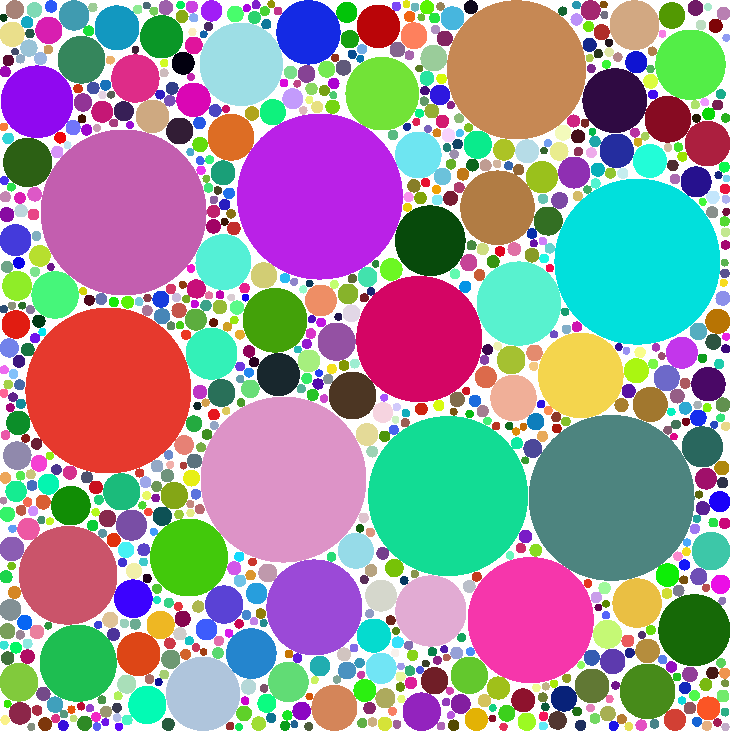
In the ever-evolving world of graphic and motion design, efficiency and creativity often collide. The Circle Packer Pro script for Adobe Illustrator 2026 is a perfect example of how automation can unlock new artistic possibilities. Built on a stochastic growth algorithm with spatial grid optimization, this script allows designers to fill complex shapes with beautifully packed circles—ideal for abstract compositions, motion graphics assets, or intricate pattern design.
What Makes Circle Packer Pro Special?
- Smart Packing Algorithm: Instead of brute-force placement, the script uses a stochastic growth method combined with a spatial grid. This ensures circles are distributed efficiently without overlapping, even in irregular shapes.
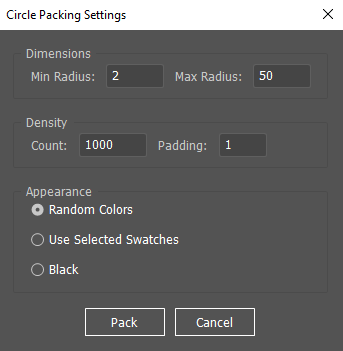
- Customizable Settings Designers can tweak parameters like:
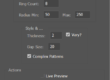
- Minimum and maximum circle radius
- Padding between circles
- Total number of circles
- Attempts per circle (to balance speed and precision)
- Color options (random, black, or selected swatches)
- Polygon Awareness The script checks whether points fall inside the selected path using a ray-casting algorithm. This means circles respect the boundaries of your chosen shape, whether it’s a rectangle, star, or complex polygon.
- Performance Optimization By dividing the shape into grid cells, the script avoids unnecessary collision checks. This makes it possible to attempt thousands of circles without bogging down Illustrator.
Designer-Friendly Features
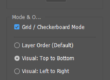
- Interactive Dialog A simple UI lets you adjust dimensions, density, and appearance before running the script. No need to dive into the code unless you want to.
- Progress Feedback A built-in progress bar keeps you updated as circles are packed, ensuring the process feels responsive.
- Grouping Options Circles can be grouped automatically for easy manipulation, or left ungrouped if you prefer direct control.
- Color Flexibility Whether you want vibrant randomness, a monochrome look, or swatch-based palettes, the script adapts to your workflow.
Why Motion Designers Should Care
Circle packing isn’t just a static design trick—it’s a motion-ready asset generator. Packed circles can be exported into After Effects or other animation tools, where they become dynamic particles, morphing shapes, or rhythmic visual elements. The script bridges the gap between generative art and practical design, giving motion artists a new playground for experimentation.
How it works:
- Input: Takes your selected shape as the container.
- Point Generation: Randomly picks a point inside that shape.
- Collision Check: Checks if that point is too close to any existing circle.
- Growth: If the point is valid, it calculates the maximum possible radius it can grow to before hitting another circle or the container edge.
- Optimization: It uses a spatial grid system (a “QuadTree-lite” approach) to speed up collision checks, preventing the script from freezing on high circle counts.
/*
  Circle Packer Pro for Adobe Illustrator 2026
  Algorithm: Stochastic Growth with Spatial Grid Optimization
  Usage: Select one path item and run the script.
*/

#target illustrator

(function() {
    // --- SETTINGS ---
    var SETTINGS = {
        minRadius: 2,           // Minimum circle size
        maxRadius: 50,          // Maximum circle size
        padding: 1,             // Gap between circles
        totalCircles: 1000,     // Number of circles to attempt
        attemptsPerCircle: 200, // How hard to try to fit a circle before giving up
        circleColor: "Random",  // "Random", "Black", or "SelectedSwatches"
        createGroup: true       // Group the resulting circles?
    };

    // --- MAIN LOGIC ---
    function main() {
        if (app.documents.length === 0) {
            alert("Please open a document and select a shape.");
            return;
        }

        var doc = app.activeDocument;
        var sel = doc.selection;

        if (sel.length !== 1 || sel[0].typename === "GroupItem") {
            alert("Please select exactly one Path Item (not a group).");
            return;
        }

        var container = sel[0];

        // Show Dialog
        if (!showDialog(SETTINGS)) return;

        // Prepare the container info
        var bounds = container.geometricBounds; // [left, top, right, bottom]
        var left = bounds[0];
        var top = bounds[1];
        var right = bounds[2];
        var bottom = bounds[3];
        var width = right - left;
        var height = top - bottom; // Top is y-max, Bottom is y-min in AI

        // Extract path coordinates for point-in-polygon check
        var polygonPoints = getPathPoints(container);

        // Optimization: Spatial Grid
        // We divide the area into cells to avoid checking every single circle against every other circle
        var cellSize = SETTINGS.maxRadius * 2;
        var cols = Math.ceil(width / cellSize);
        var rows = Math.ceil(height / cellSize);
        var grid = [];
        for (var i = 0; i < cols * rows; i++) grid.push([]);

        var packedCircles = [];

        // Progress Bar (Basic visual feedback using the UI)
        var win = new Window("palette", "Packing Circles...");
        var progressBar = win.add("progressbar", undefined, 0, SETTINGS.totalCircles);
        progressBar.preferredSize.width = 300;
        win.show();

        // ---------------- PACKING LOOP ----------------
        for (var i = 0; i < SETTINGS.totalCircles; i++) {

            // Update progress bar every 10 circles to keep UI responsive
            if (i % 10 === 0) {
                progressBar.value = i;
                win.update();
            }

            var bestCircle = null;

            // Try N times to find a valid spot for a new circle
            for (var j = 0; j < SETTINGS.attemptsPerCircle; j++) {

                // 1. Pick a random point inside the bounding box
                var cx = left + Math.random() * width;
                var cy = top - Math.random() * height; // Remember Y goes down in some contexts, but bounds are standard

                // 2. Fast Fail: Is point inside the polygon shape?
                // This is computationally expensive, so we do it first or skip for rectangles
                if (!isPointInPolygon([cx, cy], polygonPoints)) continue;

                // 3. Find closest distance to any neighbor (Collision Check)
                var minDistanceToNeighbor = Number.MAX_VALUE;
                var closestIsInvalid = false;

                // Determine grid cell
                var col = Math.floor((cx - left) / cellSize);
                var row = Math.floor((top - cy) / cellSize);

                // Check current cell and immediate neighbors (3x3 grid)
                var cellsToCheck = getNeighborCells(col, row, cols, rows);

                for (var k = 0; k < cellsToCheck.length; k++) {
                    var cellIndex = cellsToCheck[k];
                    var cellCircles = grid[cellIndex];

                    for (var m = 0; m < cellCircles.length; m++) {
                        var other = cellCircles[m];
                        var dist = getDistance(cx, cy, other.x, other.y);

                        // Distance from center to center minus the other circle's radius
                        var availableSpace = dist - other.r - SETTINGS.padding;

                        if (availableSpace < minDistanceToNeighbor) {
                            minDistanceToNeighbor = availableSpace;
                        }

                        // If we are already overlapping
                        if (minDistanceToNeighbor < SETTINGS.minRadius) {
                            closestIsInvalid = true;
                            break;
                        }
                    }
                    if (closestIsInvalid) break;
                }

                if (closestIsInvalid) continue;

                // 4. Check distance to container edge (Optional - simplified here to bounding box for speed)
                // For exact path edge collision, it's very slow in ExtendScript.
                // We rely on the initial point being inside and growth being limited by neighbors.
                // A basic box clamp:
                var distToEdge = Math.min(
                    cx - left,
                    right - cx,
                    top - cy,
                    cy - bottom
                );

                // The max radius is the minimum of: Max Limit, Distance to Neighbor, Distance to Edge
                var possibleRadius = Math.min(SETTINGS.maxRadius, minDistanceToNeighbor, distToEdge);

                if (possibleRadius >= SETTINGS.minRadius) {
                    bestCircle = { x: cx, y: cy, r: possibleRadius };
                    break; // Found a valid spot!
                }
            }

            // 5. If we found a valid circle, add it to data and grid
            if (bestCircle) {
                packedCircles.push(bestCircle);
                var cCol = Math.floor((bestCircle.x - left) / cellSize);
                var cRow = Math.floor((top - bestCircle.y) / cellSize);
                var cIndex = cRow * cols + cCol;
                if(grid[cIndex]) grid[cIndex].push(bestCircle);
            }
        }

        win.close();

        // ---------------- DRAWING ----------------
        // Create a group for the new circles
        var targetLayer = doc.activeLayer;
        var group = targetLayer.groupItems.add();
        group.name = "Packed Circles";

        // Get colors if needed
        var swatches = doc.swatches;
        var selectedSwatches = doc.swatches.getSelected();

        for (var i = 0; i < packedCircles.length; i++) {
            var c = packedCircles[i];
            var ellipse = group.pathItems.ellipse(
                c.y + c.r, // Top
                c.x - c.r, // Left
                c.r * 2,   // Width
                c.r * 2    // Height
            );

            ellipse.stroked = false;
            ellipse.filled = true;

            // Apply Color
            if (SETTINGS.circleColor === "Random") {
                var col = new RGBColor();
                col.red = Math.random() * 255;
                col.green = Math.random() * 255;
                col.blue = Math.random() * 255;
                ellipse.fillColor = col;
            } else if (SETTINGS.circleColor === "SelectedSwatches" && selectedSwatches.length > 0) {
                var randSwatch = selectedSwatches[Math.floor(Math.random() * selectedSwatches.length)];
                ellipse.fillColor = randSwatch.color;
            } else {
                var black = new GrayColor();
                black.gray = 100;
                ellipse.fillColor = black;
            }
        }

        if (!SETTINGS.createGroup) {
            // Ungroup if requested
            while(group.pageItems.length > 0) {
                group.pageItems[0].move(targetLayer, ElementPlacement.PLACEATEND);
            }
            group.remove();
        }
    }

    // --- HELPER FUNCTIONS ---

    function getDistance(x1, y1, x2, y2) {
        var dx = x1 - x2;
        var dy = y1 - y2;
        return Math.sqrt(dx * dx + dy * dy);
    }

    function getNeighborCells(col, row, cols, rows) {
        var cells = [];
        for (var x = -1; x <= 1; x++) {
            for (var y = -1; y <= 1; y++) {
                var nc = col + x;
                var nr = row + y;
                if (nc >= 0 && nc < cols && nr >= 0 && nr < rows) {
                    cells.push(nr * cols + nc);
                }
            }
        }
        return cells;
    }

    // Ray-casting algorithm to check if point is in arbitrary polygon
    function isPointInPolygon(point, vs) {
        var x = point[0], y = point[1];
        var inside = false;
        for (var i = 0, j = vs.length - 1; i < vs.length; j = i++) {
            var xi = vs[i][0], yi = vs[i][1];
            var xj = vs[j][0], yj = vs[j][1];

            var intersect = ((yi > y) != (yj > y))
                && (x < (xj - xi) * (y - yi) / (yj - yi) + xi);
            if (intersect) inside = !inside;
        }
        return inside;
    }

    function getPathPoints(pathItem) {
        var points = [];
        // Handle simple paths. Compound paths are complex and treated as bounding box for simplicity here
        // or we take the first subpath.
        if (pathItem.pathPoints) {
            for (var i = 0; i < pathItem.pathPoints.length; i++) {
                var p = pathItem.pathPoints[i].anchor;
                points.push(p);
            }
        }
        return points;
    }

    function showDialog(settings) {
        var dlg = new Window("dialog", "Circle Packing Settings");
        dlg.orientation = "column";
        dlg.alignChildren = "fill";

        var p1 = dlg.add("panel", undefined, "Dimensions");
        p1.orientation = "row";
        p1.add("statictext", undefined, "Min Radius:");
        var eMin = p1.add("edittext", undefined, settings.minRadius); eMin.characters = 5;
        p1.add("statictext", undefined, "Max Radius:");
        var eMax = p1.add("edittext", undefined, settings.maxRadius); eMax.characters = 5;

        var p2 = dlg.add("panel", undefined, "Density");
        p2.orientation = "row";
        p2.add("statictext", undefined, "Count:");
        var eCount = p2.add("edittext", undefined, settings.totalCircles); eCount.characters = 6;
        p2.add("statictext", undefined, "Padding:");
        var ePad = p2.add("edittext", undefined, settings.padding); ePad.characters = 4;

        var p3 = dlg.add("panel", undefined, "Appearance");
        p3.alignChildren = "left";
        var rRand = p3.add("radiobutton", undefined, "Random Colors");
        var rSwatch = p3.add("radiobutton", undefined, "Use Selected Swatches");
        var rBlack = p3.add("radiobutton", undefined, "Black");
        rRand.value = true;

        var btnGroup = dlg.add("group");
        btnGroup.alignment = "center";
        var okBtn = btnGroup.add("button", undefined, "Pack");
        var cancelBtn = btnGroup.add("button", undefined, "Cancel");

        okBtn.onClick = function() {
            settings.minRadius = parseFloat(eMin.text) || 2;
            settings.maxRadius = parseFloat(eMax.text) || 50;
            settings.totalCircles = parseInt(eCount.text) || 500;
            settings.padding = parseFloat(ePad.text) || 0;

            if (rRand.value) settings.circleColor = "Random";
            else if (rSwatch.value) settings.circleColor = "SelectedSwatches";
            else settings.circleColor = "Black";

            dlg.close(1);
        };

        return dlg.show() === 1;
    }

    main();

})();Installation & Usage
- Save the file: Copy the code above into a text editor (like Notepad or TextEdit) and save it as CirclePacker.jsx.
- Open Illustrator: Create a new document or open an existing one.
- Draw a Shape: Draw a shape (e.g., a circle, a star, or a blob drawn with the pen tool).
- Select the Shape: Use the Selection Tool (V) to select your shape.
- Run the Script:
- Go to File > Scripts > Other Script…
- Locate your CirclePacker.jsx file and click Open.
- Adjust Settings: A menu will pop up allowing you to change the Min/Max radius and the number of circles (Density).
Tips for Best Results
- Complex Shapes: The script uses a “Ray Casting” method to check if a point is inside your shape. This works best on single, closed paths. If you have a “Compound Path” (like a donut), release the compound path or use Object > Flatten Transparency first for better detection.
- Performance: For “Total Circles” over 2,000, the script might take a few seconds to process. The progress bar will let you know it’s working.[1]
- Colors: If you select “Use Selected Swatches,” make sure you have some color swatches selected in the Swatches Panel before running the script; otherwise, it will default to black.