1. User Presets Folder (ffx files)
After Effects looks in your user profile for presets:
Windows path:
C:\Users\<YourUsername>\Documents\Adobe\After Effects <version>\User Presets\
- Replace
<YourUsername>with your Windows username. - Replace
<version>with your After Effects version, e.g.,2025. - Put your
.ffxfiles here. - They will show up under Animation → Apply Animation Preset inside After Effects.
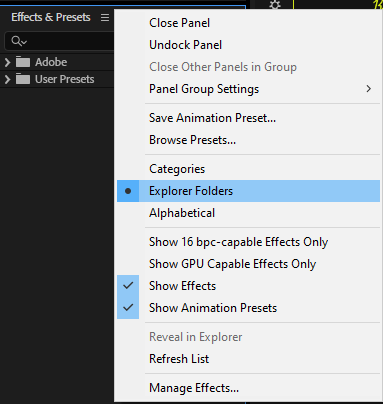
Make sure that you select Explorer Folders from Effects&Presets panel.
2. Extensions (zxp files)
- Unpack the .zxp (if needed)
- Rename
your-extension.zxp→your-extension.zipand extract with Explorer / 7‑Zip. You should get a folder containingCSXS/manifest.xml(or anextensionfolder structure).
- Rename
- Create the per‑user CEP extensions folder
- Open Explorer and go to:
%APPDATA%\Adobe\CEP\extensions\ - (I.E.: C:\Users\\AppData\Roaming)
- If the
CEP\extensionspath doesn’t exist, create it.
- Open Explorer and go to:
- Choose the extension folder name (ID)
- Use the extension’s ID (usually in
manifest.xmlasExtensionBundleIdorExtension Id) as the folder name. If unsure, pick a short unique name (e.g.com.yourname.myext). - Example final path:
%APPDATA%\Adobe\CEP\extensions\com.yourname.myext\
- Use the extension’s ID (usually in
- Copy files
- Copy the extracted extension files into that folder (so
CSXS/manifest.xmlsits under%APPDATA%\Adobe\CEP\extensions\com.yourname.myext\).
- Copy the extracted extension files into that folder (so
- Enable loading unsigned / per‑user CEP extensions (PlayerDebugMode)
- CEP often refuses unsigned extensions unless debug mode is enabled. You can set this per‑user via the registry (no admin required) — run these in a Command Prompt (normal user):
reg add "HKCU\Software\Adobe\CSXS.6"  /v PlayerDebugMode /t REG_DWORD /d 1 /f
reg add "HKCU\Software\Adobe\CSXS.7"  /v PlayerDebugMode /t REG_DWORD /d 1 /f
reg add "HKCU\Software\Adobe\CSXS.8"  /v PlayerDebugMode /t REG_DWORD /d 1 /f
reg add "HKCU\Software\Adobe\CSXS.9"  /v PlayerDebugMode /t REG_DWORD /d 1 /f
reg add "HKCU\Software\Adobe\CSXS.10" /v PlayerDebugMode /t REG_DWORD /d 1 /f
- (These keys target common CSXS versions; add/remove lines for other version numbers if needed. HKCU edits do not require admin.)
- Restart Adobe app and Creative Cloud / CEP host
- Quit the target Adobe application (Photoshop/Illustrator/After Effects etc.) and restart it. If necessary, sign out/in of Creative Cloud or restart the computer to clear caches.
- Open the extension
- In the host app look under
Window > Extensions(orWindow > Extensions (Legacy)), or use the menu the extension documents specify. Some hosts expose extensions underWindow > Extensionsonly when manifest’s Host list matches the app version.
- In the host app look under
3. Scripts (JavaScript / JSX / JSXBIN)
- These are executed by the host app directly (e.g., Photoshop, Illustrator, After Effects).
- Per-user location (no admin required):
%APPDATA%\Adobe\<AppName>\<Version>\Presets\Scripts\
Example (Photoshop 2025):
C:\Users\<YourUser>\AppData\Roaming\Adobe\Adobe Photoshop 2025\Presets\Scripts\
- Place
.jsxor.jsxbinfiles here. - After copying, restart the app. The scripts appear under:
File > Scripts
4. ScriptUI Panels (JSX + .xml for UI)
- ScriptUI panels are basically scripts with a panel UI.
- To make them show in the Window > Extensions / Panels menu, they need to be placed in:
%APPDATA%\Adobe\<AppName>\<Version>\Scripts\ScriptUI Panels\
Example (Photoshop 2025):
C:\Users\<YourUser>\AppData\Roaming\Adobe\Adobe Photoshop 2025\Presets\Scripts\ScriptUI Panels\
- Copy your
.jsxfile there. - Restart Photoshop. The panel appears under:
Window > Extensions > YourPanelName