
Automate Your Workflow: Split Paths into Layers in Adobe Illustrator
If you’ve ever worked with complex vector artwork in Adobe Illustrator, you know how messy things can get — dozens (or hundreds) of paths stacked inside a single layer. Editing, animating, or exporting these elements individually becomes a nightmare.
That’s exactly why I wrote a small Illustrator Script (JSX) that automatically converts all paths inside a layer into their own separate layers — keeping their original names intact.
Whether you’re preparing assets for motion design in After Effects, creating layered exports for a web project, or just trying to stay organized, this script will save you tons of manual effort.
💡 What the Script Does
The script:
- Checks your currently active layer.
- Collects all paths and page items under it.
- Creates a new layer for each path, using the path’s name as the new layer name.
- Moves the path into its new layer, maintaining all attributes (colors, strokes, transformations).
- Ensures layer names are unique (adds suffixes if duplicates exist).
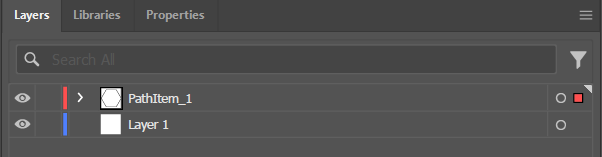
Once you run it, you’ll end up with a beautifully organized Layers panel — one path per layer, ready for animation, export, or individual manipulation.
⚙️ How to Use the Script
- Open your Illustrator document.
- Select the layer that contains the paths you want to split.
- Go to
File → Scripts → Other Script…
and choose the.jsxfile containing the script below:
// Illustrator ExtendScript (JSX)
// Moves every top-level pageItem from the active layer into its own new layer,
// using the pageItem's name as the new layer name (adds suffix if necessary).
// Run with the layer you want to split set as the active layer.

if (app.documents.length === 0) {
    alert("No open document.");
} else {
    var doc = app.activeDocument;
    var srcLayer = doc.activeLayer;
    if (!srcLayer) { alert("No active layer."); }
    else {
        // Collect items first to avoid modifying collection while iterating
        var items = [];
        for (var i = 0; i < srcLayer.pageItems.length; i++) {
            items.push(srcLayer.pageItems[i]);
        }

        for (var i = 0; i < items.length; i++) {
            var it = items[i];

            // Determine base name for new layer
            var baseName = it.name && it.name.length ? it.name : (it.typename + "_" + (i+1));

            // Ensure unique layer name
            var newLayerName = baseName;
            var suffix = 1;
            while (layerExists(doc, newLayerName)) {
                newLayerName = baseName + "_" + suffix;
                suffix++;
            }

            // Create layer and move item there
            var nl = doc.layers.add();
            nl.name = newLayerName;

            try {
                it.move(nl, ElementPlacement.PLACEATBEGINNING);
            } catch (e) {
                // fallback: assign layer directly
                try { it.layer = nl; } catch (e2) { /* ignore */ }
            }
        }

        // Optional: keep original layer but empty. Notify user.
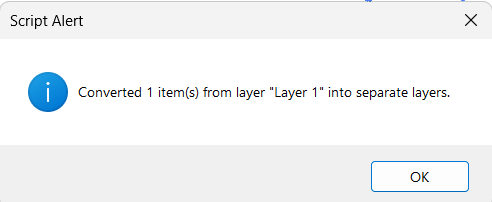
        alert("Converted " + items.length + " item(s) from layer \"" + srcLayer.name + "\" into separate layers.");
    }
}

// Helper: check if a layer with given name exists
function layerExists(doc, name) {
    try {
        doc.layers.getByName(name);
        return true;
    } catch (e) {
        return false;
    }
}
Why This Matters for Designers
- Speed: What could take minutes or hours manually is now done in seconds.
- Precision: No more dragging elements by hand or misplacing layers.
- Consistency: Great for projects that need matching structure across multiple files.
- After Effects Prep: Ideal when exporting layered Illustrator files for motion graphics.
This little automation can make a big difference if you frequently work with complex artwork, templates, or motion assets.
🪄 Pro Tip
Combine this with other scripts like:
- Rename Layers Sequentially
- Export Each Layer as PNG/SVG
- Batch Convert to Separate Artboards
By stacking simple scripts, you can build your own smart Illustrator automation pipeline — perfectly tailored to your creative workflow.
📦 Download & Customize
You can copy the code above into a text editor (like VSCode or Sublime), save it asSplitPathsToLayers.jsx, and place it inside your Illustrator scripts folder:
Windows:C:\Program Files\Adobe\Adobe Illustrator [version]\Presets\en_US\Scripts
macOS:/Applications/Adobe Illustrator [version]/Presets/en_US/Scripts
After restarting Illustrator, it will appear under the File → Scripts menu.
🚀 Wrap-Up
Automation doesn’t replace creativity — it amplifies it.
By turning repetitive Illustrator chores into one-click actions, you can focus more on what matters: design, motion, and storytelling.
If you’re a designer who likes things clean and efficient, give this script a try.
Your Layers panel will thank you.