
Supercharge Your After Effects Workflow: The Ultimate Marker Script
If you work in After Effects, you know that markers are your best friend. They are the unsung heroes of complex timelines, helping you sync animations to audio, note key moments, or simply keep your project organized. But let’s be honest: placing them manually, one by one, is tedious and time-consuming. What if you could add dozens of precisely-timed, color-coded markers to your composition or layers with just a few clicks?
Today, we’re breaking down a powerful After Effects script that does exactly that. This isn’t just a simple marker-placer; it’s a versatile tool with a user-friendly UI designed to streamline your workflow and bring a new level of organization to your projects.
Introducing the Solution: An Advanced Marker Script
We’ve developed a script, addCompOrLayerMarkers.jsx, that provides a simple dialog box to give you complete control over marker creation. No more manual clicking and naming—just set your parameters, hit “OK,” and let the script do the heavy lifting.
Feature Breakdown: What Can It Do?
This script is packed with features that address the real-world needs of animators and motion designers.
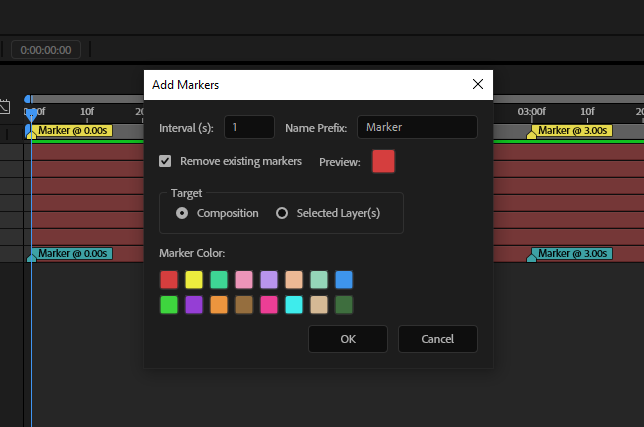
- Precision Interval Placement: Need a marker every 5 seconds for a music cue? Or every 10 frames for a character’s walk cycle? The Interval (s) field lets you define the exact time between each marker, ensuring perfect, consistent spacing across your timeline.
- Custom Naming and Context: Forget generic “Marker 1,” “Marker 2.” The Name Prefix field automatically names each marker with your chosen prefix and appends the exact timestamp (e.g., “Beat @ 05.00s”). This gives you immediate context without ever having to open the marker dialog.
- Flexible Targeting: Comp or Layers?: This is where the script truly shines. Using a simple radio button, you can choose your target:
- Composition: Add markers directly to the main composition timeline, perfect for global project notes or timing.
- Selected Layer(s): Add markers to one or multiple selected layers. The script is smart enough to place them only within each layer’s duration (
inPointtooutPoint), keeping everything tidy.
- Visual Organization with Color Labels: The script includes a palette of swatches that correspond to After Effects’ 16 default label colors. You can visually select a color from the UI, and all your new markers will be created with that label. It’s a fantastic way to categorize markers (e.g., Red for client feedback, Green for audio cues, Blue for animation notes).
- Start with a Clean Slate: Have a timeline cluttered with old markers? Just check the Remove existing markers box, and the script will wipe the slate clean on your target (comp or layers) before adding the new ones.
How to Use the Script
Getting started is incredibly simple:
- Save the Code: Copy the script code below and save it in a plain text file with a
.jsxextension (e.g.,addCompOrLayerMarkers.jsx). - Open After Effects: Open your project and the composition you want to work with.
- Select Layers (Optional): If you want to add markers to specific layers, select them in the timeline.
- Run the Script: In After Effects, go to File > Scripts > Run Script File… and select the
.jsxfile you just saved. - Configure and Go: The script’s UI will pop up. Fill in your desired interval, prefix, choose a color, select your target, and click OK.
That’s it! Your timeline will instantly be populated with perfectly placed, named, and colored markers.
The Script: Your New Favorite Tool
Here is the complete, final code. Copy and save this to start using it in your projects today.
/**
 * addCompOrLayerMarkers_fixed.jsx
 *
 * A versatile script to add markers with an advanced UI.
 * - Adds markers to the Composition OR to Selected Layers.
 * - Interval, Prefix, and Color Label controls.
 * - Uses the official After Effects default label colors.
 * - Fixes the error when adding markers to layers by using the correct
 *   `.marker` property instead of `.markerProperty`.
 *
 * Usage:
 * 1. Open a composition.
 * 2. (Optional) Select one or more layers.
 * 3. Run the script (File > Scripts > Run Script File...).
 * 4. Use the dialog to configure your markers, choose a target, and click OK.
 */

(function addCompOrLayerMarkers() {
    // Ensure an active comp is selected
    if (!app.project || !(app.project.activeItem instanceof CompItem)) {
        alert("Please select an active composition.");
        return;
    }
    var comp = app.project.activeItem;

    // Official After Effects Label Colors (RGB values 0-1)
    var labelColors = [
        [0.5, 0.5, 0.5],    // 0: None (Defaulting to a mid-gray, as label 0 has no color)
        [0.835, 0.243, 0.243], // 1: Red
        [0.925, 0.925, 0.243], // 2: Yellow
        [0.243, 0.835, 0.584], // 3: Aqua
        [0.925, 0.584, 0.725], // 4: Pink
        [0.725, 0.584, 0.925], // 5: Lavender
        [0.925, 0.725, 0.584], // 6: Peach
        [0.584, 0.835, 0.725], // 7: Sea Foam
        [0.243, 0.584, 0.925], // 8: Blue
        [0.243, 0.835, 0.243], // 9: Green
        [0.584, 0.243, 0.835], // 10: Purple
        [0.925, 0.584, 0.243], // 11: Orange
        [0.584, 0.431, 0.243], // 12: Brown
        [0.925, 0.243, 0.584], // 13: Fuchsia
        [0.243, 0.925, 0.925], // 14: Cyan
        [0.835, 0.725, 0.584], // 15: Sandstone
        [0.243, 0.431, 0.243]  // 16: Dark Green
    ];

    // Create the dialog window
    var win = new Window("dialog", "Add Markers");
    win.orientation = "column";
    win.alignChildren = "left";
    win.spacing = 10;

    // --- UI ELEMENTS ---
    var row1 = win.add("group");
    row1.add("statictext", undefined, "Interval (s):");
    var intervalInput = row1.add("edittext", undefined, "1");
    intervalInput.characters = 5;
    row1.add("statictext", undefined, "Name Prefix:");
    var prefixInput = row1.add("edittext", undefined, "Marker");
    prefixInput.characters = 15;

    var row2 = win.add("group");
    row2.alignChildren = "center";
    var removeCheckbox = row2.add("checkbox", undefined, "Remove existing markers");
    removeCheckbox.value = true;
    var previewGroup = row2.add("group");
    previewGroup.add("statictext", undefined, "Preview:");
    var previewPanel = previewGroup.add("panel", undefined, "");
    previewPanel.preferredSize = [25, 25];
    previewPanel.selectedLabel = 1; // Default to Red (index 1)

    // Target selection
    var targetPanel = win.add("panel", undefined, "Target");
    targetPanel.orientation = "row";
    targetPanel.spacing = 10;
    var compRadio = targetPanel.add("radiobutton", undefined, "Composition");
    var layersRadio = targetPanel.add("radiobutton", undefined, "Selected Layer(s)");
    compRadio.value = true;

    win.add("statictext", undefined, "Marker Color:");
    var swatchContainer = win.add("group", undefined, "");
    swatchContainer.orientation = "column";
    swatchContainer.spacing = 5;

    var swatchPanels = [];
    var swatchesPerRow = 8;

    // --- UI LOGIC ---
    function updateUI() {
        var selectedLabel = previewPanel.selectedLabel;
        var gPrev = previewPanel.graphics;
        gPrev.backgroundColor = gPrev.newBrush(gPrev.BrushType.SOLID_COLOR, labelColors[selectedLabel]);
        previewPanel.visible = true;

        for (var i = 0; i < swatchPanels.length; i++) {
            var p = swatchPanels[i];
            var g = p.graphics;
            var pen = (p.labelIndex === selectedLabel)
                ? g.newPen(g.PenType.SOLID_COLOR, [0.9, 0.9, 0.9, 1], 2)
                : g.newPen(g.PenType.SOLID_COLOR, [0.1, 0.1, 0.1, 1], 1);
            g.foregroundColor = pen;
        }
        win.layout.layout(true);
    }

    for (var r = 0; r < 2; r++) {
        var swatchRow = swatchContainer.add("group");
        swatchRow.orientation = "row";
        swatchRow.spacing = 5;
        for (var c = 0; c < swatchesPerRow; c++) {
            var index = r * swatchesPerRow + c + 1;
            if (index >= labelColors.length) break;

            (function(labelIndex) {
                var panel = swatchRow.add("panel");
                panel.preferredSize = [20, 20];
                panel.labelIndex = labelIndex;
                var g = panel.graphics;
                g.backgroundColor = g.newBrush(g.BrushType.SOLID_COLOR, labelColors[labelIndex]);

                panel.addEventListener("mousedown", function() {
                    previewPanel.selectedLabel = this.labelIndex;
                    updateUI();
                });
                swatchPanels.push(panel);
            })(index);
        }
    }

    win.onShow = function() { updateUI(); };

    // --- DIALOG BUTTONS ---
    var buttonGroup = win.add("group");
    buttonGroup.alignment = "right";
    var okBtn = buttonGroup.add("button", undefined, "OK");
    var cancelBtn = buttonGroup.add("button", undefined, "Cancel");
    cancelBtn.onClick = function() { win.close(); };

    var interval, prefix, removeExisting, finalLabel, targetMode;
    okBtn.onClick = function() {
        interval = parseFloat(intervalInput.text);
        if (isNaN(interval) || interval <= 0) {
            alert("Enter a positive number for interval."); return;
        }
        prefix = prefixInput.text;
        removeExisting = removeCheckbox.value;
        finalLabel = previewPanel.selectedLabel;
        targetMode = compRadio.value ? "comp" : "layers";
        win.close();
    };

    win.show();
    if (interval === undefined) return;

    // --- SCRIPT EXECUTION ---
    app.beginUndoGroup("Add Markers");
    try {
        var targets = [];
        if (targetMode === "comp") {
            targets.push(comp);
        } else {
            var selectedLayers = comp.selectedLayers;
            if (selectedLayers.length === 0) {
                alert("Please select at least one layer to add markers to.");
                return;
            }
            for (var i = 0; i < selectedLayers.length; i++) {
                targets.push(selectedLayers[i]);
            }
        }

        var markersAddedCount = 0;
        for (var i = 0; i < targets.length; i++) {
            var currentTarget = targets[i];
            // *** FIX: Use .marker for layers, .markerProperty for comps ***
            var markerProp = (currentTarget instanceof CompItem) ? currentTarget.markerProperty : currentTarget.marker;

            var startTime = (currentTarget instanceof CompItem) ? 0 : currentTarget.inPoint;
            var endTime = (currentTarget instanceof CompItem) ? currentTarget.duration : currentTarget.outPoint;

            if (removeExisting) {
                for (var k = markerProp.numKeys; k >= 1; k--) {
                    markerProp.removeKey(k);
                }
            }

            var localMarkersCount = 0;
            for (var t = 0; t <= comp.duration + 1e-6; t += interval) {
                if (t >= startTime && t <= endTime) {
                    var comment = prefix + " @ " + t.toFixed(2) + "s";
                    var m = new MarkerValue(comment);
                    try {
                        m.label = finalLabel;
                    } catch (e) { /* ignore if not supported */ }
                    markerProp.setValueAtTime(t, m);
                    localMarkersCount++;
                }
            }
            if (i === 0) {
                markersAddedCount = localMarkersCount;
            }
        }

        var alertMessage = "Added " + markersAddedCount + " markers every " + interval + "s to ";
        alertMessage += (targetMode === "comp") ? "the composition." : targets.length + " selected layer(s).";
        alert(alertMessage);

    } catch (err) {
        alert("Error: " + err.toString());
    } finally {
        app.endUndoGroup();
    }
})();