
The Ultimate Rhythm & Stretch Tool for After Effects
If you’re a motion designer, you know the feeling. You’ve got a killer animation idea and the perfect track to go with it. You import the music into After Effects, start dropping keyframes on the beat, and then… you hit the wall. Your keyframes land on frame 12.5, 16.67, or some other sub-frame nightmare. Your once-perfect rhythm now feels sloppy, and your workflow grinds to a halt as you fight against the timeline. Syncing frame-based animation to time-based audio is one of the most common, yet frustrating, challenges in motion graphics. But what if you could eliminate the guesswork? What if you had a tool that did all the math for you, telling you exactly how to make your music and your animation dance together in perfect harmony?
Today, we’re introducing a tool that does just that: the Rhythm & Stretch Tool, a custom script for After Effects designed to make audio synchronization effortless.
The Problem: Frames vs. Beats
The core of the issue is simple: your composition has a fixed frame rate (like 24, 25, or 30 frames per second), while your music has a tempo measured in beats per minute (BPM). These two timing systems rarely align perfectly.
For example, in a 25 FPS composition, a 120 BPM track has a beat every 12.5 frames. How do you animate to that? Do you place your keyframe on frame 12 or 13? Either way, it’s not quite right. This tiny imprecision, when repeated over an entire animation, can make the final result feel disconnected and unprofessional.
The solution is to find a tempo that does align with the frame rate, or to adjust your audio to fit. This script does both.
Introducing the Rhythm & Stretch Tool
This simple, dockable panel for After Effects is a two-in-one solution. It’s a powerful reference guide and a practical utility that bridges the gap between musical time and your timeline.
Here’s a breakdown of its features:
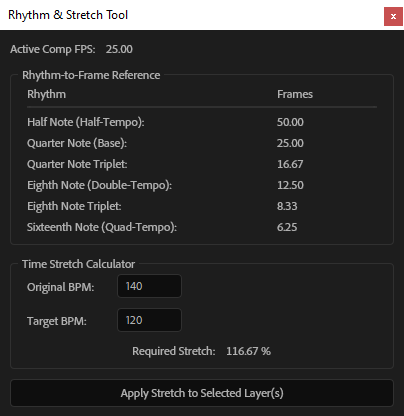
1. The Rhythm-to-Frame Reference Table
At a glance, this table answers the most important question: “For my current frame rate, what rhythms will sync perfectly?”
Instead of showing a confusing list of BPMs, the tool provides a clean, musically-relevant reference. It shows you how standard note divisions—like half notes, quarter notes (your base beat), and eighth-note triplets—translate directly into exact frame durations. The panel automatically detects your active composition’s FPS and updates the table instantly. No more manual calculations.
2. The Time-Stretch Calculator
This is where the magic happens. You’ve found a “perfect” frame interval in the reference table, but your music has a different BPM. What now?
The Time-Stretch Calculator makes it easy:
Original BPM: Enter your music’s current tempo.
Target BPM: Enter the ideal BPM you want to sync to (you can get this by calculating divisor * 60 from the table).
Required Stretch: The tool instantly calculates the exact time-stretch percentage needed to retune your audio.
3. One-Click “Apply Stretch”
Once you have your stretch percentage, the workflow is seamless. Simply select your audio layer in the timeline and click the “Apply Stretch to Selected Layer(s)” button. The script handles the rest, perfectly retiming your audio to match your desired tempo.
A Real-World Workflow
Imagine your composition is 30 FPS and your music is 140 BPM.
You open the Rhythm & Stretch Tool. The reference table immediately tells you that for a 30 FPS comp, a beat every 12 frames (an eighth-note triplet rhythm) would be perfectly in sync. This corresponds to a tempo of 150 BPM.
In the calculator, you enter Original BPM: 140 and Target BPM: 150.
The tool calculates the Required Stretch: 93.33%.
You select your audio layer, click the “Apply Stretch” button, and you’re done.
Your audio is now at 150 BPM, with every beat landing precisely on a frame. You can now animate with confidence, knowing your work will be crisp, rhythmic, and perfectly synchronized.
Get the Script
Ready to transform your workflow? Here’s the script. Just copy the code, save it as a .jsx file (e.g., RhythmAndStretchTool.jsx), and run it in After Effects via File > Scripts > Run Script File…. We recommend docking the panel in your workspace for easy access.
/**
 * Rhythm & Stretch Sync Tool for Adobe After Effects
 *
 * This script provides a UI to:
 * 1. Display a clean reference table of musical rhythms and their corresponding frame durations.
 * 2. Calculate the required time-stretch percentage to change audio from an original BPM to a target BPM.
 * 3. Apply the calculated stretch to selected layers with one click.
 */

(function rhythmAndStretchTool(thisObj) {

    // --- Main UI Creation ---
    function createUI() {
        // Define a wider default size for the palette
        var palette = (thisObj instanceof Panel) ? thisObj : new Window("palette", "Rhythm & Stretch Tool", undefined, { resizeable: true });
        if (palette === null) return;

        palette.preferredSize.width = 400;
        palette.orientation = "column";
        palette.alignChildren = ["fill", "top"];
        palette.spacing = 10;
        palette.margins = 10;

        // --- UI Elements ---

        // Group for displaying active composition's frame rate
        var infoGroup = palette.add("group");
        infoGroup.orientation = "row";
        infoGroup.alignment = ["left", "top"];
        infoGroup.add("statictext", undefined, "Active Comp FPS:");
        var fpsText = infoGroup.add("statictext", undefined, "N/A");
        fpsText.characters = 10;
        fpsText.graphics.font = ScriptUI.newFont("Arial", "BOLD", 12);

        // --- Structured Reference Table ---
        var referencePanel = palette.add("panel", undefined, "Rhythm-to-Frame Reference");
        referencePanel.alignChildren = ["fill", "top"];
        referencePanel.spacing = 5;

        // Header Row
        var headerGroup = referencePanel.add("group");
        headerGroup.orientation = "row";
        var rhythmHeader = headerGroup.add("statictext", undefined, "Rhythm");
        rhythmHeader.preferredSize.width = 240;
        rhythmHeader.graphics.font = ScriptUI.newFont("Arial", "BOLD", 11);
        var framesHeader = headerGroup.add("statictext", undefined, "Frames");
        framesHeader.preferredSize.width = 100;
        framesHeader.graphics.font = ScriptUI.newFont("Arial", "BOLD", 11);

        // Separator
        referencePanel.add("panel", [0, 0, 360, 2]);

        // Array to hold the text elements for dynamic updating
        var referenceRows = [];
        var musicalDivisions = [
            { label: "Half Note (Half-Tempo)",      divisor: 0.5 },
            { label: "Quarter Note (Base)",         divisor: 1 },
            { label: "Quarter Note Triplet",        divisor: 1.5 },
            { label: "Eighth Note (Double-Tempo)",  divisor: 2 },
            { label: "Eighth Note Triplet",         divisor: 3 },
            { label: "Sixteenth Note (Quad-Tempo)", divisor: 4 }
        ];

        // Create a row for each musical division
        for (var i = 0; i < musicalDivisions.length; i++) {
            var rowGroup = referencePanel.add("group");
            rowGroup.orientation = "row";
            var labelText = rowGroup.add("statictext", undefined, musicalDivisions[i].label + ":");
            labelText.preferredSize.width = 240;
            var valueText = rowGroup.add("statictext", undefined, "0.00");
            valueText.preferredSize.width = 100;
            referenceRows.push({ label: labelText, value: valueText });
        }

        // --- Time Stretch Calculator ---
        var stretchPanel = palette.add("panel", undefined, "Time Stretch Calculator");
        stretchPanel.alignChildren = ["fill", "top"];
        stretchPanel.spacing = 10;

        var originalBpmGroup = stretchPanel.add("group");
        originalBpmGroup.orientation = "row";
        originalBpmGroup.add("statictext", undefined, "Original BPM:").preferredSize.width = 80;
        var originalBpmInput = originalBpmGroup.add("edittext", undefined, "140");
        originalBpmInput.characters = 7;

        var targetBpmGroup = stretchPanel.add("group");
        targetBpmGroup.orientation = "row";
        targetBpmGroup.add("statictext", undefined, "Target BPM:").preferredSize.width = 80;
        var targetBpmInput = targetBpmGroup.add("edittext", undefined, "120");
        targetBpmInput.characters = 7;

        var stretchResultGroup = stretchPanel.add("group");
        stretchResultGroup.orientation = "row";
        stretchResultGroup.alignment = "center";
        stretchResultGroup.add("statictext", undefined, "Required Stretch:");
        var stretchResultText = stretchResultGroup.add("statictext", undefined, "0.00 %");
        stretchResultText.graphics.font = ScriptUI.newFont("Arial", "BOLD", 14);

        // Apply Button
        var applyBtn = palette.add("button", undefined, "Apply Stretch to Selected Layer(s)");

        // --- UI LOGIC ---

        function updateReferenceTable() {
            var comp = app.project.activeItem;
            if (comp === null || !(comp instanceof CompItem)) {
                fpsText.text = "N/A";
                for (var i = 0; i < referenceRows.length; i++) {
                    referenceRows[i].value.text = "N/A";
                }
                return;
            }

            var fps = comp.frameRate;
            fpsText.text = fps.toFixed(2);

            for (var i = 0; i < musicalDivisions.length; i++) {
                var item = musicalDivisions[i];
                var framesPerBeat = fps / item.divisor;
                referenceRows[i].value.text = framesPerBeat.toFixed(2);
            }
        }

        function calculateStretch() {
            var originalBpm = parseFloat(originalBpmInput.text);
            var targetBpm = parseFloat(targetBpmInput.text);

            if (isNaN(originalBpm) || isNaN(targetBpm) || originalBpm <= 0 || targetBpm <= 0) {
                stretchResultText.text = "---";
                return NaN;
            }

            var stretchPercent = (originalBpm / targetBpm) * 100;
            stretchResultText.text = stretchPercent.toFixed(2) + " %";
            return stretchPercent;
        }

        function applyStretch() {
            var stretchValue = calculateStretch();
            if (isNaN(stretchValue)) {
                alert("Please enter valid BPM values.");
                return;
            }

            var selectedLayers = app.project.activeItem ? app.project.activeItem.selectedLayers : [];
            if (selectedLayers.length === 0) {
                alert("Please select at least one layer to apply the stretch to.");
                return;
            }

            app.beginUndoGroup("Apply BPM Time Stretch");
            try {
                for (var i = 0; i < selectedLayers.length; i++) {
                    var layer = selectedLayers[i];
                    if (layer.canSetTimeRemapEnabled) {
                        if (!layer.timeRemapEnabled) {
                            layer.timeRemapEnabled = true;
                        }
                        var timeStretchProp = layer.property("Time Remap").property("Time Stretch");
                        if (timeStretchProp) {
                            timeStretchProp.setValue(stretchValue);
                        }
                    } else {
                        alert("Cannot apply stretch to layer '" + layer.name + "' as it does not support Time Stretching.");
                    }
                }
            } catch (e) {
                alert("An error occurred: " + e.toString());
            } finally {
                app.endUndoGroup();
            }
        }

        // --- Event Listeners ---
        originalBpmInput.onChanging = calculateStretch;
        targetBpmInput.onChanging = calculateStretch;
        applyBtn.onClick = applyStretch;

        app.activeViewer.onActivate = function() {
            updateReferenceTable();
            calculateStretch();
        };

        // --- Initial Load ---
        updateReferenceTable();
        calculateStretch();

        // --- Layout and Display ---
        palette.layout.layout(true);
        palette.onResizing = palette.onResize = function() { this.layout.resize(); };
        if (palette instanceof Window) {
            palette.center();
            palette.show();
        }
    }

    createUI();

})(this);