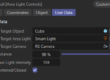

If you’ve ever modeled or animated in Cinema 4D, you know how important it is to have a clean and even polygon grid. Whether you’re adding displacement, deformers, cloth simulation, or just preparing assets for motion graphics, having properly sized segments on your plane objects can make all the difference.
Manually tweaking width and height segments each time you adjust the plane’s size can be tedious — especially when you’re building procedural setups. That’s where this advanced Python Tag comes in.
This small script automatically adjusts a Plane Object’s Width and Height Segments to keep them as rectangular and uniform as possible, no matter how you scale it. It even includes a handy Multiplier control, so you can dial in more or fewer subdivisions on the fly.
✨ Why This Is Useful for Designers
- Procedural setups stay clean: You can resize planes freely without breaking texture mapping or deformer behavior.
- Perfect for displacements: Keeps quads close to a 1:1 ratio, so textures, noise, and bumps look even.
- Motion graphics friendly: Ideal for animated surfaces, cloth grids, wave deformers, and simulation bases.
- Zero maintenance: The tag updates segments automatically whenever you change plane dimensions.
⚙️ How It Works
The script looks at your plane’s current Width and Height, calculates their ratio, and sets Width Segments and Height Segments so that each polygon is as square as possible.
A Multiplier user data parameter allows you to increase or decrease overall density proportionally.
For example:
| Plane Size | Multiplier | Result |
|---|---|---|
| 100×100 | 1.0 | 10×10 Segments |
| 200×100 | 1.0 | 20×10 Segments |
| 200×100 | 2.0 | 40×20 Segments |
| 100×200 | 1.0 | 10×20 Segments |
import c4d
from c4d import utils

def main():
    # Object that holds this tag
    obj = op.GetObject()
    if obj is None:
        return

    # Check if it's a Plane object
    if obj.GetType() != c4d.Oplane:
        return

    # Get width and height
    width = obj[c4d.PRIM_PLANE_WIDTH]
    height = obj[c4d.PRIM_PLANE_HEIGHT]
    if width <= 0 or height <= 0:
        return

    # Get multiplier from user data
    multiplier = op[c4d.ID_USERDATA, 1] if op[c4d.ID_USERDATA, 1] else 1.0

    # Compute base scale factor
    # Adjust to keep roughly square segments
    ratio = width / height
    base_segments = max(width, height) / 10.0 * multiplier

    # Calculate width and height segments proportionally
    if ratio >= 1:
        wseg = int(base_segments)
        hseg = max(1, int(base_segments / ratio))
    else:
        hseg = int(base_segments)
        wseg = max(1, int(base_segments * ratio))

    # Clamp to Cinema 4D limits
    wseg = max(1, min(wseg, 1000))
    hseg = max(1, min(hseg, 1000))

    # Apply to object
    obj[c4d.PRIM_PLANE_SUBW] = wseg
    obj[c4d.PRIM_PLANE_SUBH] = hseg
Setup Instructions
- Create a Plane Object in your Cinema 4D scene.
- Right-click it → Rigging Tags → Python Tag.
- In the Python Tag, go to User Data → Add User Data…
- Name: Multiplier
- Type: Float
- Default: 1.0
- Paste the code above into the tag’s code field.
- Adjust the plane’s width, height, or multiplier — the grid updates instantly!
🧩 Designer Tips
- Use low Multiplier values (0.5–1) for fast previews and layout work.
- Use higher values (2–4) for final renders or detailed deformations.
- Combine with Cloners, Fields, or Displacers for dynamic procedural effects.
- Works great as a base for cloth, ripple surfaces, or abstract geometry animations.
This little automation saves time and ensures geometric consistency — perfect for designers who prefer to work smarter, not harder. You’ll never have to guess segment counts again, and your procedural setups will stay elegant, scalable, and perfectly subdivided.
If you’re into procedural workflows, scripting, or simply cleaner geometry — give this one a try.
Download “Smart Plane Auto Segmented Python Tag” Auto_Segments_Plane.zip – Downloaded 2 times – 87.37 KB